
Below is the instructions for installing Smarty Lite on a server with Debian Buster OS (you can also install Smarty Lite using a script, more details in the corresponding article). For information about setting up certain features or services of the Smarty Middleware platform, which you will not find here, you should look for the help page of the full version of Smarty: reference.
To work, you will need SSH access to the root server. Installation will be made in console mode through terminal commands. If you need to execute a sudo command to obtain root privileges, you must execute a command before installing:
sudo su -
Installation of necessary packages and libraries
We establish dependencies with the help of apt:
apt update
apt install python3 python3-pip
apt install git python3-dev libtiff-dev libjpeg-dev zlib1g-dev libfreetype6-dev liblcms2-dev libwebp-dev python3-tk uwsgi uwsgi-plugin-python3 redis-server build-essential wget pwgen libmariadb-dev nginx
Create simlinks so that by default we use python3 and pip3
ln -f -s /usr/bin/python3 /usr/bin/python
ln -f -s /usr/bin/pip3 /usr/bin/pip
Next, you need to download the smarty-lite, jsonrpctcp and ujson deb packages and install them:
dpkg -i smarty-lite*.deb
wget http://dl.micro.im/packets/release/python3-jsonrpctcp/jsonrpctcp-0.2.0.tar.gz
pip install jsonrpctcp-0.2.0.tar.gz
wget http://dl.micro.im/packets/release/ujson/bullseye/ujson-2.0.4.dev0.tar.gz
pip install ujson-2.0.4.dev0.tar.gz
Be careful - you need to use the Smarty Lite installation package specifically for the Debian Buster version, it is located in the buster directory. Otherwise, an error may occur when performing further commands undefined symbol: PyFPE_jbuf.
When an error occurs
dpkg: warning: 'ldconfig' not found in PATH or not executable
dpkg: warning: 'start-stop-daemon' not found in PATH or not executable
execute the following command:
export PATH=/usr/local/sbin:/usr/local/bin:/usr/sbin:/usr/bin:/sbin:/bin
Then try installing the packages again.
After installing the basic packages, install python libraries used in Smarty. First you need to do this (for Debian Buster only):
pip install mysql-connector
pip install mysql-connector-python
pip install mysqlclient
Then install Python libraries:
pip install -r /usr/share/microimpuls/smarty-lite/requirements.txt
pip install pytz==2021.3
Installation of DBMS for Smarty Lite
Smarty Lite supports various databases, in the basic version it is recommended to use MySQL or MariaDB, for Debian Buster we install MariaDB:
apt install mariadb-server
Create a user to connect Smarty Lite in the database and specify the password in the Smarty Lite settings:
export DBPASSWORD='pwgen -s 16 1'
echo "CREATE DATABASE smarty CHARACTER SET = utf8;" | mysql -u root
echo "SET default_storage_engine=InnoDB;" | mysql -u root
echo "CREATE USER 'smarty'@"%' IDENTIFIED BY '$DBPASSWORD';' | mysql -u root
echo "GRANT ALL PRIVILEGES ON smarty.* To 'smarty'@"%';' | mysql -u root
echo "FLUSH PRIVILEGES;" | mysql -u root
sed -i -e 's/PUT DB PASSWORD HERE/'$DBPASSWORD'''/g' /etc/microimpuls/smarty-lite/smarty-lite.py
The last command replaces the "PUT DB PASSWORD HERE" line with the automatically generated password in the file /etc/microimpuls/smarty-lite/smarty-lite.py - Smarty Lite settings file.
In the Smarty Lite settings file, the default settings for connecting to the locally installed MySQL database (or MariaDB compatible with it) are indicated, but if necessary, you can install the DBMS on another machine.
Preparation of the configuration of the nginx Web server and the uWSGI application server
Prescribe a secret key for the operation of internal protection mechanisms Smarty Lite:
export SECRETKEY='pwgen -s 32 1'
sed -i -e 's/PUT Random SECRET KEY HERE/'$SECRETKEY''/g' /etc/microimpuls/smarty-lite/smarty-lite.py
Activate the Smarty Lite configuration for nginx and uwsgi:
ln -s /etc/nginx/sites-available/smarty-lite /etc/nginx/sites-enabled/smarty-lite
ln -s /etc/uwsgi/apps-available/smarty-lite.ini /etc/uwsgi/apps-enabled/smarty-lite.ini
Create a directory for cache and logs nginx:
mkdir /var/cache/nginx
mkdir -p /var/log/nginx/microimpuls/smarty-lite
We change the limit of open sockets for optimal work:
echo "net.core.somaxconn=4096" > /etc/sysctl.conf
sysctl -p
Set the right directory rights for logs and file downloads in Smarty:
chown -R www-data:www-data /var/log/microimpuls
chown -R www-data:www-data /usr/share/microimpuls
Installation of the licence key
Next, you need to register the license key.
Before receiving the license key, we need to correct the symbolic link. To do this, you need to prescribe the following command:
ln -s /etc/microimpuls/smarty-lite/smarty-lite.py /usr/share/microimpuls/smarty-lite/settings/smarty-lite.pyFurther, to obtain a license key, you need to use the HW key - the print of the machine on which the Smarty Lite is installed. To get it, you need to run uwsgi:
/etc/init.d/uwsgi restart
And then in the file /var/log/uwsgi/app/smarty-lite.log find the HW key or use the command:
cat /var/log/uwsgi/app/smarty-lite.log | grep "Exception: Key incorrect, HW key"
For example, the resulting HW key will be as follows:
9eb4a0c2b360c93e32cf2471780cda494705f0a9d026c69fe033d8c8
This value must be inserted into the appropriate field in the license generation window in the operator’s personal account, and then copy the resulting key with all license parameters that must be written into the configuration file /etc/microimpuls/smarty-lite/smarty-lite.py.
License generation is called by the button "Generate a new license key" in the corresponding product in the LC.
Copying the license and all parameters is done using the icon "Copy" in the line with the license key.
Installation of the OBD scheme
We will install the Smarty Lite database schema using the built-in data migration mechanism:
python /usr/share/microimpuls/smarty-lite/manage.py migrate --settings=settings.smarty-lite
Launch of services
Restart nginx and uwsgi with current settings:
/etc/init.d/nginx restart
/etc/init.d/uwsgi restart
System settings and configuration example
To quickly start using Smarty Lite, we have prepared a team that will set system settings and create examples of data – sets of TV channels, EPG, tariffs, streaming services and other objects necessary for the operation of the IPTV & OTT service. To do this, do:
python /usr/share/microimpuls/smarty-lite/manage.py setup_initial_data --settings=settings.smarty-lite
Then you can edit them and add your data.
Set up regular commands in crontab
For the correct operation of Smarty Lite and updating subscriber data, you need to configure the execution of commands on a schedule in crontab, for this at the end of the file /etc/crontab add the following lines:
*/1 * * * * root python /usr/share/microimpuls/smarty-lite/manage.py cache_channel_list --settings=settings.smarty-lite
0 5.9.13 * * * root python /usr/share/microimpuls/smarty-lite/manage.py epg_import --settings=settings.smarty-lite
0 3 * * * root python /usr/share/microimpuls/smarty-lite/manage.py clean_old_messages --days_count 3 --settings=settings.smarty-lite
The first team updates the cache of TV channels. The second command imports EPG (teleguide) every day 3 times - at 5:00, 9:00 and 13:00 server time. The third command clears old undelivered text messages and commands (with a creation date older than three days).
Creating a user and getting started
IPTV & OTT service in Smarty Lite is managed through the Web-control panel.
Next, create a user with superadministrator rights to access the control panel:
export ADMINPASSWORD='pwgen -s 16 1'
python /usr/share/microimpuls/smarty-lite/manage.py create_user --settings=settings.smarty-lite --reset_password=False --username=admin --password='echo $ADMINPASSWORD' --is_admin=True --client_id=1 --is_superuser=True
echo $ADMINPASSWORD
The last command will output the generated password - save it.
Затем открываем в браузере панель управления Smarty Lite http://X.X.X.X:8180 и авторизуемся созданным пользователем (в нашем примере это admin и пароль, сгенерированный выше):
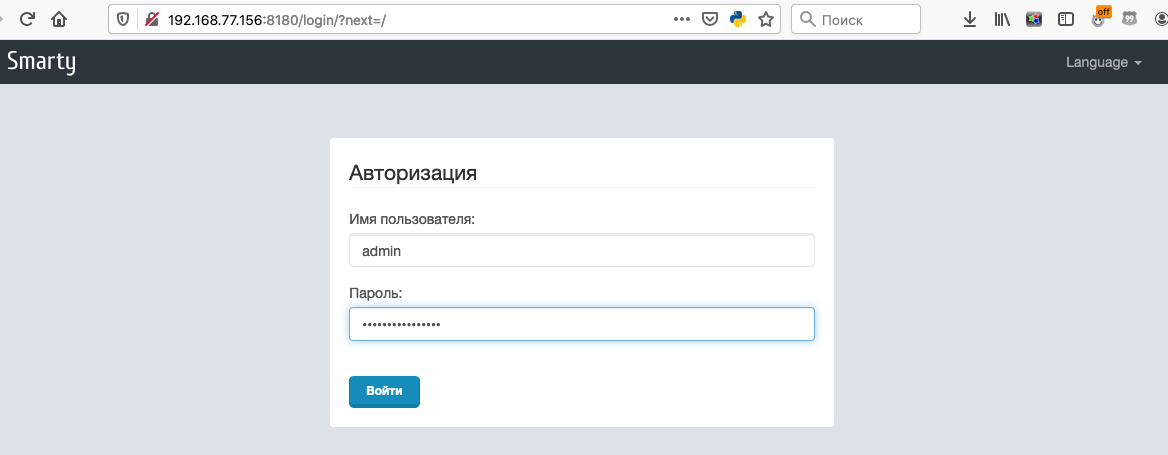
Next, you need to install and configure the subscriber portal, connecting it with the Smarty Lite API. Through the portal, the subscriber gets access to IPTV & OTT services.
