
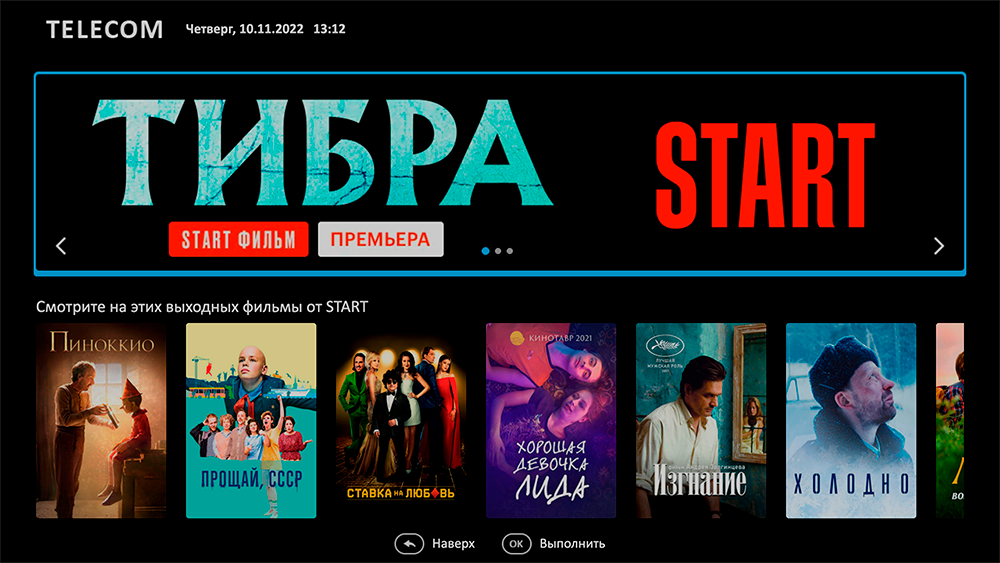
The Futuristic template allows you to use a new screen designer as the main screen of the application, which we called Dashboard. Video instructions about its setting in the admin can be viewed here.
How to turn on Dashboard as the main screen?
To do this, you should use the new value of the option main_screen_mode file client.js or on the device settings page in the admin:
var CLIENT_SETTINGS = {
///...
'main_screen_mode': "dashboard"
};
Can I add a classic main menu to Dashboard?
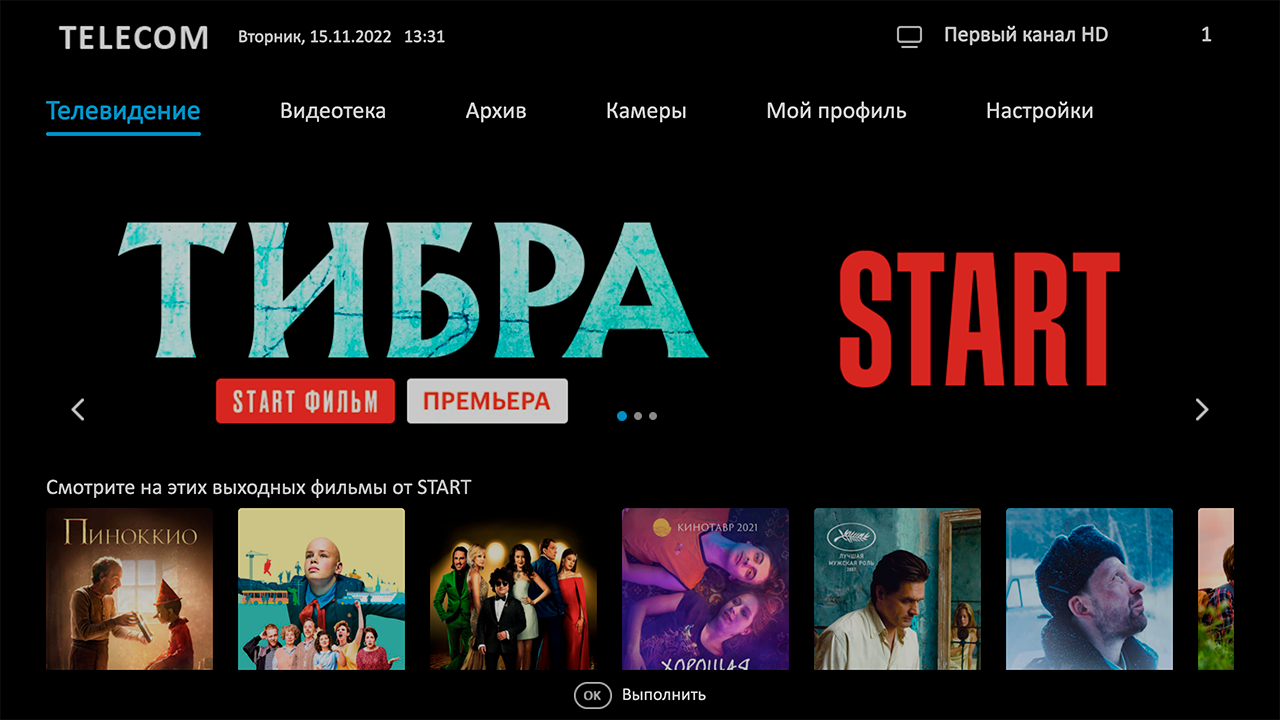
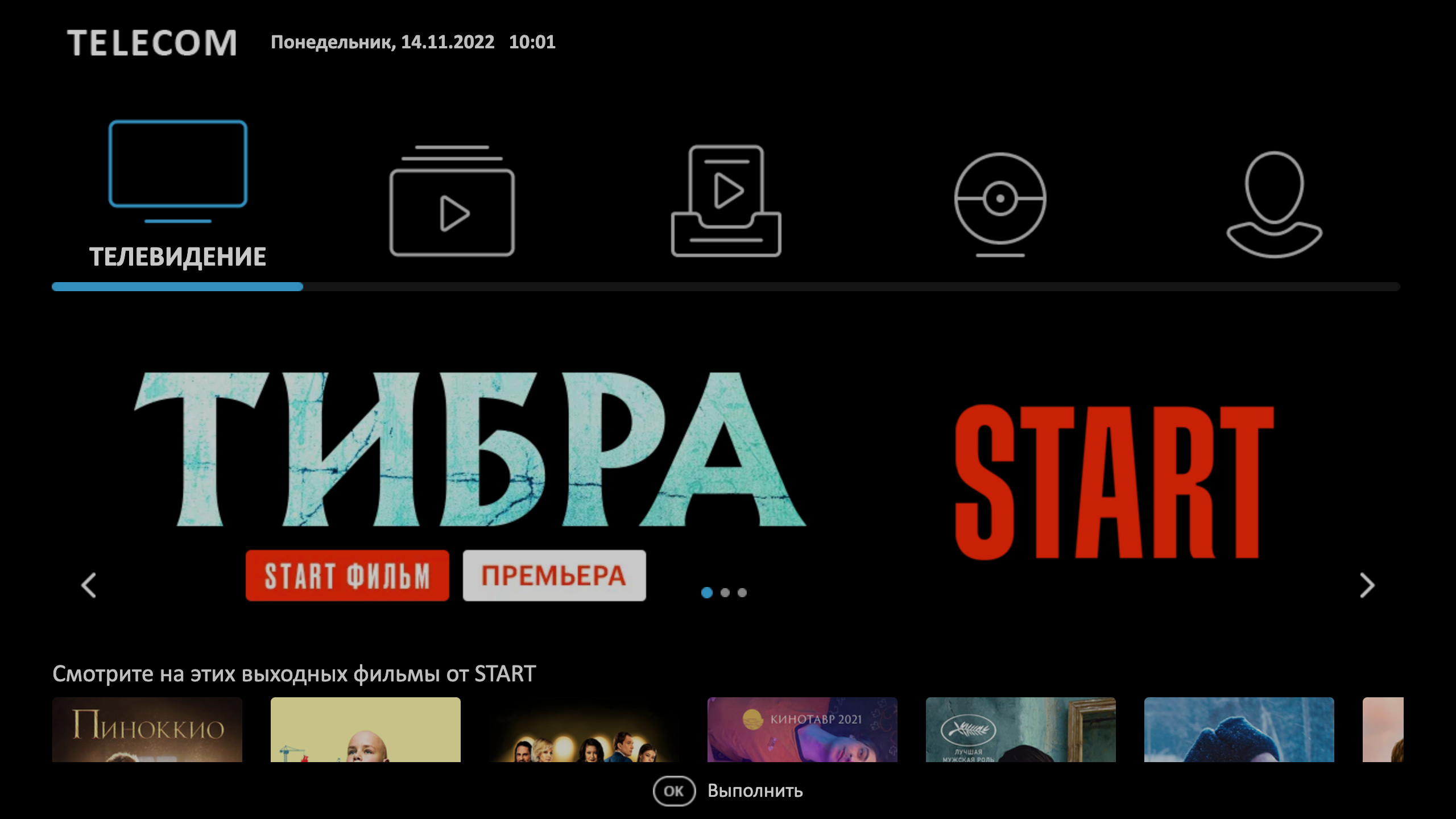
Yes, you can add as one of the tapes as the classic main menu, and its minimalist look, enabled by the option dashboard_main_menu_mode.
var CLIENT_SETTINGS = {
///...
'dashboard_main_menu_mode': "minimalistic,"
};
Dashboard loads for a long time, if it has a lot of tapes, what to do?
To do this, we added the possibility of fine-tuning the tape loading mechanism, which can be selected based on the number of tapes, their filling and devices.
The first option is responsible for portion loading of tapes - with the help of it you can set the number of tapes, which is enough for the first rendering of the Dashboard screen. The name of the option is dashboard_load_portionthe default value is 4This means that after successfully loading the first 4 tapes, they will be rendered, and the remaining tapes will continue to load in the background also 4 pieces at a time. The minimum value for this option is 2.
var CLIENT_SETTINGS = {
///...
'dashboard_load_portion': 4,
};
The second option involves loading the tape as they scroll through – that is, each next tape is loaded only if it is navigated. Default value: falsely.
var CLIENT_SETTINGS = {
///...
'use_dashboard_descent_loading': true,
};
We do not recommend turning on the Dashboard mode for low-performance devices, as work on them can be unstable.
