
You can change the app template for STB or Smart TV in several ways:
- in the Smarty administration panel for a specific account;
- in the Smarty administration panel for a specific type of device;
- in the client.js application configuration file
Changing the template for the account
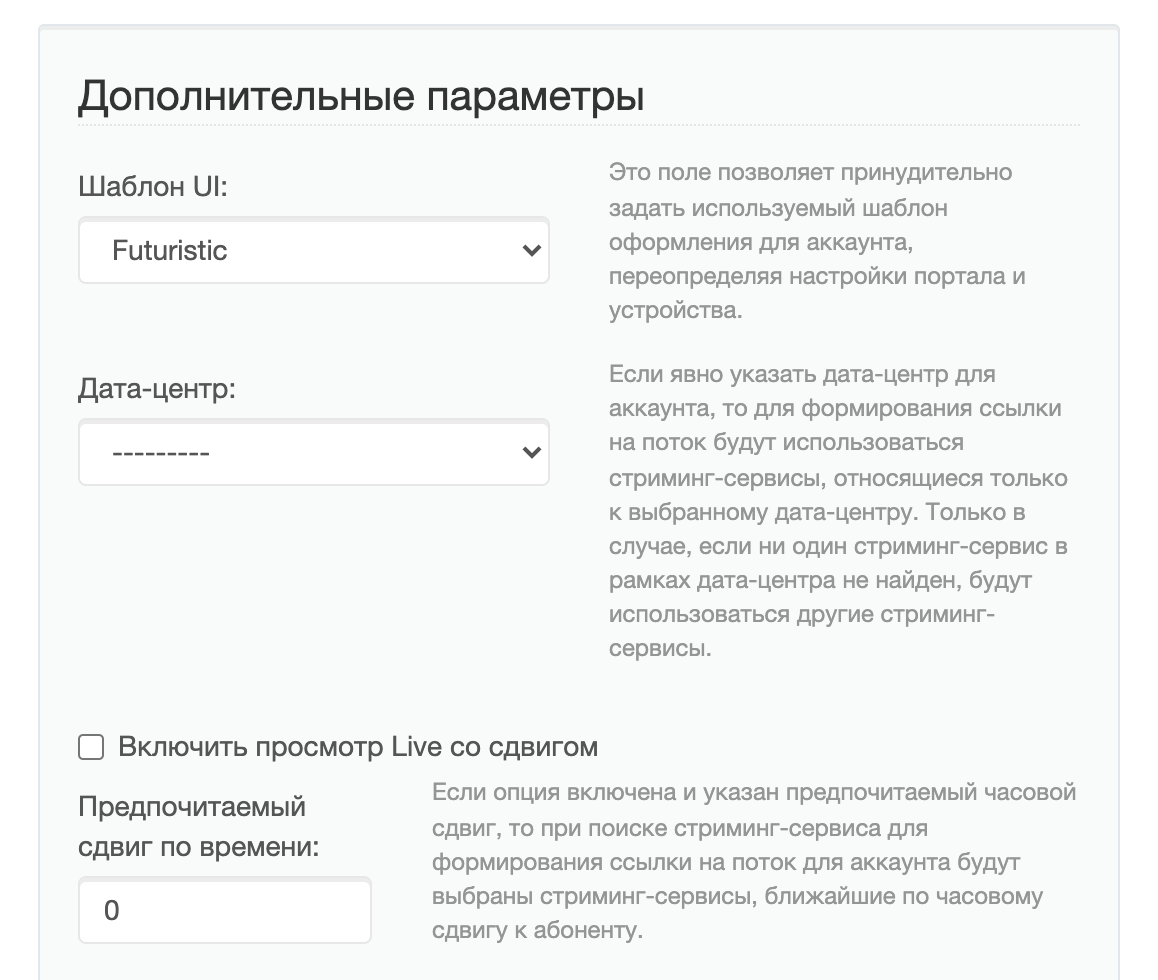
This feature allows you to set a specific interface template for one particular account.
You can change the displayed interface at the client account level through the Smarty control panel in the section «Subscribers». To do this, you need to open an account of interest to us (it can be found on the screen) «Accounts») and in masonry « Additional parameters » adjust «UI» template;. The template for this account will automatically change the next time the portal is launched.
Changing the template for the device
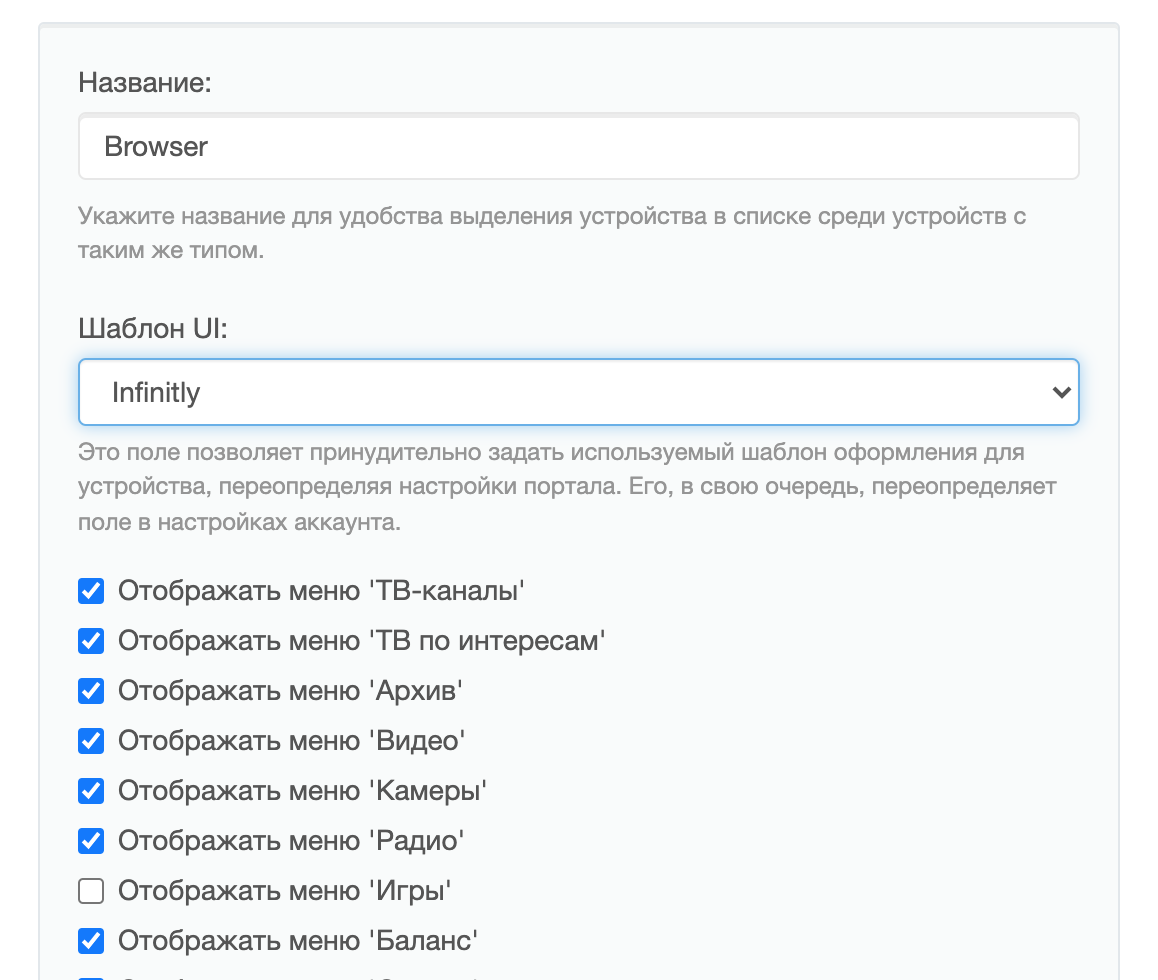
This feature allows you to set an interface template for all users who log in to the application from a certain type of device.
In order to set a template for a certain type of devices, you need to go to the section « General settings » — «Settings STB and applications ». Next, select the device for which we want to change the template and change the value of the field «UI» template;. The template will change automatically for all users with this type of device at the next launch of the portal.
Change the default template in the client.js configuration file
Changing the template in the portal configuration file sets the default template for all portal users.
In order to change the default template, it is necessary in the configuration file /etc/microimpuls/portal/client.js parameterize template (more information about the parameter) template can be found in the section Portal and application settings — Portal options).
Example:
var CLIENT_SETTINGS = {
///...
'template_name': 'futuristic'
};
Priority of template selection
If different interface templates are specified in the configuration file, device settings, and account settings, then the template selection priority will work as follows:
- If any specific template is specified in the account settings, the portal will launch with the interface corresponding to this template.
- If the account settings indicate a default pattern (Default), the template corresponding to the device settings will be loaded. If any template is specified for the account, but authorization in the application has not yet been carried out, then the template corresponding to the device settings will be downloaded, after authorization, the portal will be rebooted and the template corresponding to the account settings will be downloaded.
- If the template is not specified in the account settings and in the device settings, then the template from the configuration file settings will be downloaded.
